
If you’ve ever built PowerApps / Dynamics 365 web resources the “inner loop” probably feels familiar:
- make a change
- rebuild
- upload/update web resources
- publish
- refresh the page (and sometimes clear cache…)
- repeat until morale improves
That loop is painful—especially when you’re tweaking UI layout or iterating on JavaScript behavior.
Hot Module Reload (HMR) fixes that by letting you edit code and see changes instantly in the browser without refreshing (and without losing state in many cases). Vite’s dev server is excellent at this, but web resources are served from your Dynamics domain—so we need a way to “splice” the Vite dev server into the web resource request path.
This post walks through a pragmatic approach:
- Use Vite for your modern dev experience (fast bundling + HMR)
- Use Fiddler Classic AutoResponder to rewrite Dynamics web resource requests to your local dev server
- edit → save → instant update in the Dynamics-hosted page without refreshing
Microsoft's documentation has a good article on using Fiddler to serve local files but the article doesn't cover HMR.
Vite App Configuration
Create a Vite project
Pick your favorite framework (React, Svelte, Vue, etc.) and TypeScript or JavaScript—whatever you normally use.
Then open the created project folder.
Install mkcert plugin for Vite
Dynamics pages are HTTPS, and modern browsers enforce mixed-content rules. The simplest path is to run your Vite dev server on HTTPS too.
Update your vite.config.ts
We want different behavior for dev vs production:
- Dev server (vite serve): emit absolute paths that match Dynamics web resource URLs
- Build (vite build): emit relative paths so the bundle can be uploaded/embedded/moved without hardcoding a domain path
Before
After
If you’re using React/Vue/etc. instead of Svelte, keep your framework plugin and just add mkcert(). Replace "test_/myapp/" with your webresource path prefix. This should be a folder that will be dedicated to this HTML web resource and its css/js files.
Why this matters
- Setting base to /webresources/test_/myapp/ makes Vite generate asset URLs that look like Dynamics web resources.
- Removing hashed filenames keeps file names stable so solution components don't need to change every time we make changes.
- Disabling CSS code splitting to keep a single web resource for the stylesheet.
If your HTML isn’t named index.html (Optional)
If your HTML page isn’t named index.html, rename the file and tell Vite/Rollup which HTML entry to use.
Start the dev server
You might get a certificate prompt from mkcert on your first run. Accept it if you do.
Vite will print the port its running on. Typically, you'll see "Local: https://localhost:5173/webresources/test_/myapp/"
Note: 5173 is the default port. If it’s in use, Vite will pick another. The terminal output will show the actual port.
If you want to force a specific port, you can also add to the server section of the config:
Install and configure Fiddler Classic
Now we’ll route Dynamics web resource requests to your local Vite server.
Install Fiddler Classic
Download and install Fiddler Classic.
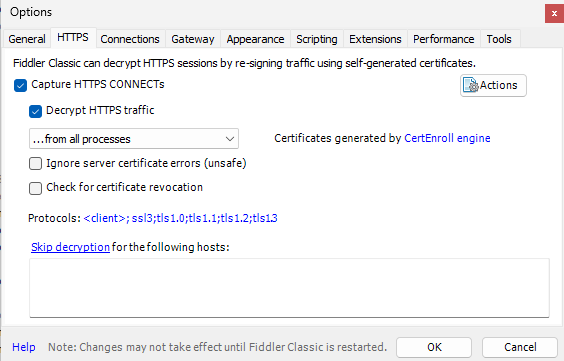
Enable HTTPS capture + decryption
- Open Fiddler
- Go to Tools > Options > HTTPS
- Check:
- Capture HTTPS CONNECTs
- Decrypt HTTPS traffic
- Click Yes on the certificate prompts to trust the Fiddler cert.
Make sure capturing is enabled
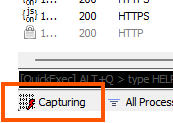
Look at the bottom-left corner and ensure Capturing is turned on. If it isn't, click the bottom left corner or hit F12 to enable capturing.
Configure AutoResponder rewrite rule
We’re going to rewrite web resource requests like:
https://<org>.crm#.dynamics.com/.../webresources/test_/myapp/<file>
…into:
https://localhost:5173/webresources/test_/myapp/<file>
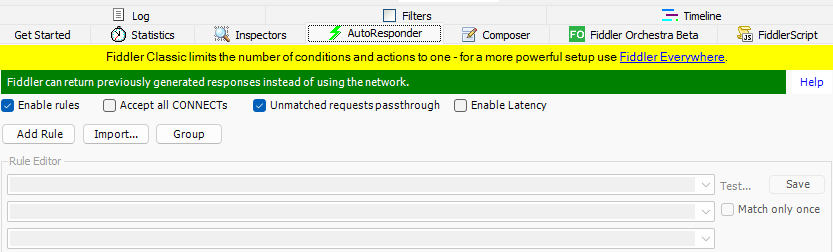
Enable AutoResponder
- Go to the AutoResponder tab
- Check:
- Enable Rules
- Unmatched Requests passthrough
Add the rule
Create a new rule:
IF request matches:
Then respond with:
If Vite chooses a different port, update the rule accordingly
Be sure to click "Save" after entering your changes.

Open Dynamics and load your web resource page
Now open your Dynamics page that hosts the web resource (or open the web resource directly), and you should see your app running.
Enjoy HMR: edit → save → instant update
Make a UI change (CSS, component markup, etc.). Save.
You should see the UI update without refreshing the Dynamics page.
Troubleshooting tips
“It doesn’t update” / “HMR not working”
- Confirm Vite is running on HTTPS and the correct port (https://localhost:5173)
- Confirm Fiddler is decrypting HTTPS traffic
“Dynamics still serves old JS”
- Ensure Fiddler “Unmatched Requests passthrough” is enabled
- Make sure caching isn’t forcing old resources
- Disable cache and bypass service workers for network in browser dev tools in the Network and Application tabs respectively.

