

Using workspace identity and semantic-model parameters to simplify setting up the new Low Latency Link to Fabric.
As a Dynamics 365 F&O Technical Architect in this world of Power Platform and Dataverse, you find yourself managing more than just your F&O environments. You will need to also manage things like ADO Build Pipelines or Connections to Dataverse for reporting tools like Power BI.
Along those lines, Microsoft is rolling out a new, low latency version of the Fabric link. If you are in a situation where you have Dataverse reporting and non-production versions of the reports, there are some potential pitfalls that you need to avoid in your architecture to take advantage of the new Link to Fabric technology.
Two tools in the toolbox
Workspace identity for authentication, and parameters in the semantic model for the server and database. Together they keep non-production reporting pointed at the right place after every refresh.
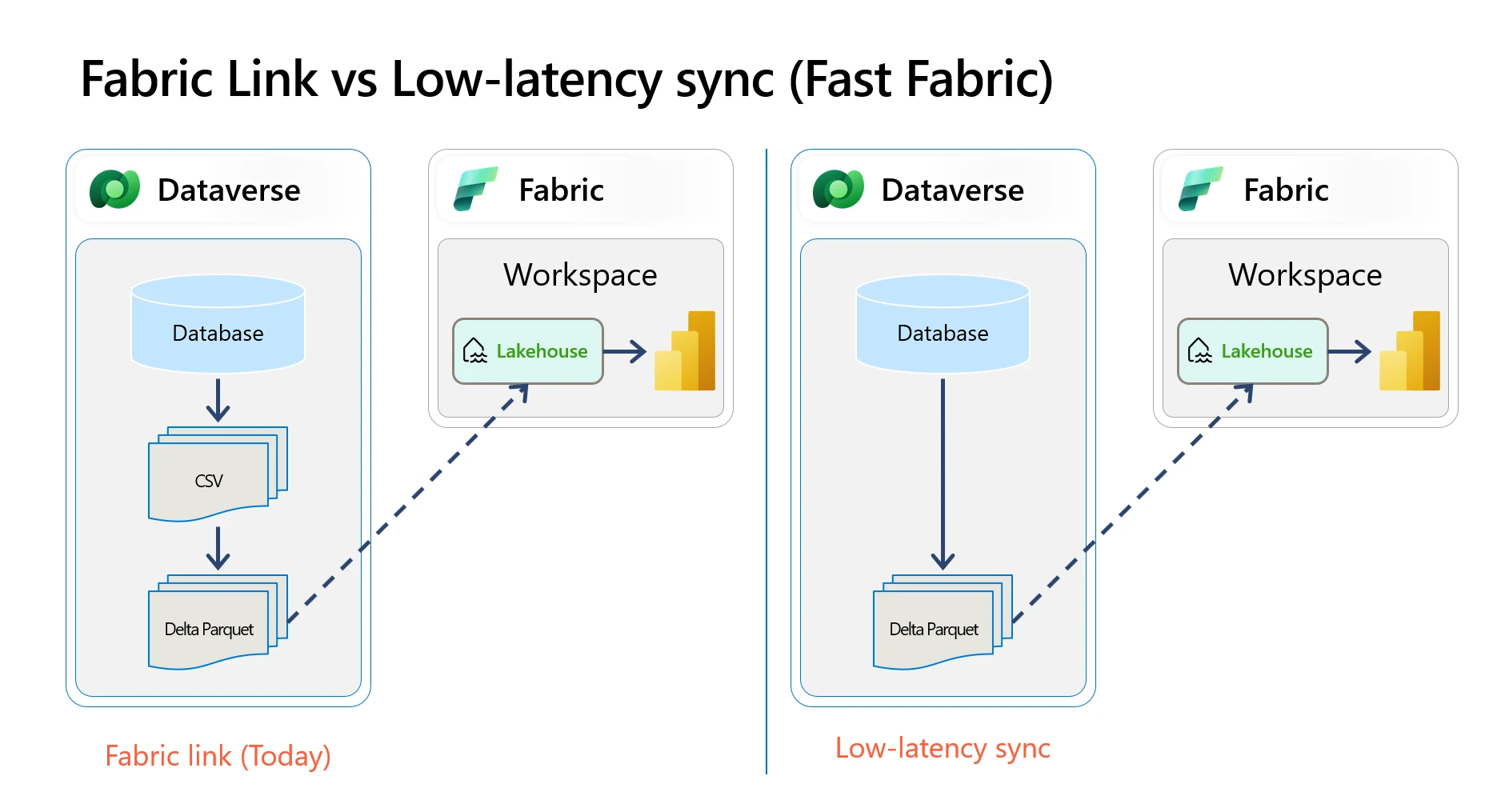 Fabric link today versus the new low-latency sync. Image courtesy of Microsoft Learn.
Workspace Identity
Fortunately, one of the best tools to have in your toolkit for this situation is another new-ish feature from Microsoft, Workspace Identity. Workspace Identity allows you to create a Microsoft-managed service principal authentication method specifically for a Fabric workspace.
There's a simple one page wizard that is accessible from your Workspace settings screen to set up the Workspace identity. Once it is created, you can use it to set up both the initial connection to the workspace in the new Link to Fabric wizard, as well as using it to connect your semantic models. That's tool #1 for your toolbox.
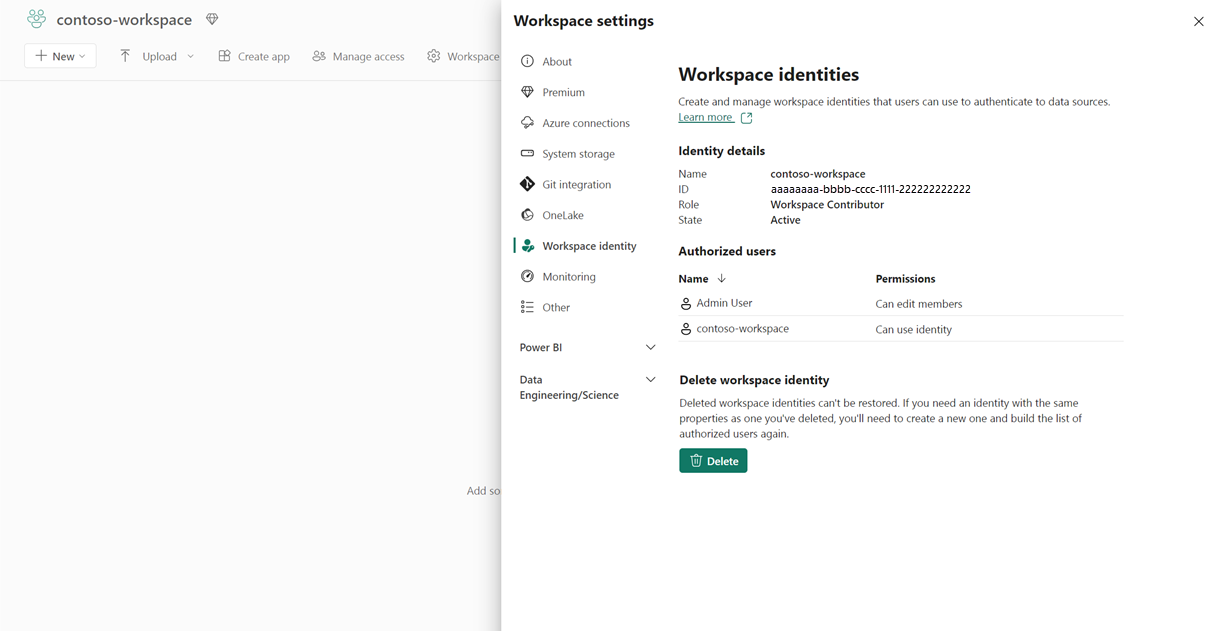 Workspace identity details in Fabric workspace settings. Image courtesy of Microsoft Learn.
Creating the new Low Latency Fabric Link
Once you have the Workspace Identity at the ready, you can begin to work on the first pitfall. Many companies will have some sort of refresh cadence for non-production environments. Whether that is a support environment that is refreshed nightly, or a UAT environment that is refreshed on a longer schedule, like monthly or quarterly, at some point those environments need to be refreshed to continue to be useful.
When we refreshed a non-production environment with a copy of production, the Link to Fabric data link was removed. However, the workspaces, lakehouse, SQL analytics endpoint, models, and reports remained. The new Link to Fabric wizard is designed to create a brand new lakehouse and SQL analytics endpoint.
Based on guidance from Microsoft Support, we split the non production objects between two workspaces. Creating the Low Latency Fabric link creates a new workspace, lakehouse, and endpoint each time you run the wizard. The existing models and reports can then be repointed to the new lakehouse from their existing workspace.
Note also that you need to have a Workspace Identity set up for each of these workspaces, and you will need to add the Workspace Identity where the reports and models live into the workspace where the lakehouse and endpoint reside with the appropriate permissions.
Semantic Model Parameters
Repointing these objects reveals the second pitfall. Many times, semantic models are created with hard-coded connection string information. We need a way to keep the database server and database connection string settings between the semantic model and the server and database connection used by Fabric in sync.
To accomplish this, we will use our Workspace Identity in our toolbox, along with tool #2, which is parameters in the semantic model definition for both the Fabric server and the Fabric database. Parameters are used in this implementation to determine where the semantic model connects. The Fabric cloud connection determines how Fabric authenticates to that location. Workspace identity supplies the credentials used by the cloud connection.
In our implementation, we set the parameter names to be fairly descriptive, FabricServer and FabricDatabase. For these parameter values, the values can be determined from the properties on the SQL analytics endpoint connection.
Cloud Connections using Workspace Identity
At this point, you have created the new Link to Fabric via the wizard, you've got the workspace identities created, and you have the semantic model using parameters for the server and database names.
At this point, you can go into the semantic model properties, and under Cloud connections, you can create a connection using the workspace identity to be used to refresh the semantic model that will point to the new lakehouse and SQL endpoint. Be sure to give the cloud connection a descriptive name so that you can easily verify that it is indeed the active connection for the semantic model.
Validation steps
- Confirm the semantic model displays the expected cloud connection.
- Confirm the cloud connection uses Workspace identity authentication.
- Confirm the server and database parameters point to the intended non-production SQL analytics endpoint.
- Run an on-demand refresh.
- Review refresh history to validate the on-demand refresh completed successfully.
- Validate a known report result against the non-production environment.
- Confirm that the model is querying the correct non-production environment.
Worth the setup
Using this approach, you can take full advantage of the new tools that Microsoft has provided, and set up your reporting architecture in a way that minimizes risk.
It takes some time to set all of these things up initially, especially refactoring the data connections in the semantic model, but once you have done so, you only need to change the parameter values in the semantic model settings, rather than trying to find all the hard-coded values in the model itself, which will bring you as the architect much greater peace of mind and significantly fewer headaches!
References
- Low-latency sync — Power Platform blog
- Link to Microsoft Fabric — Microsoft Learn
- Fabric workspace identity — Microsoft Learn
Diagrams and screenshots courtesy of Microsoft Learn.